How to Optimize Your Pc Settings for Max Fps in Fortnite

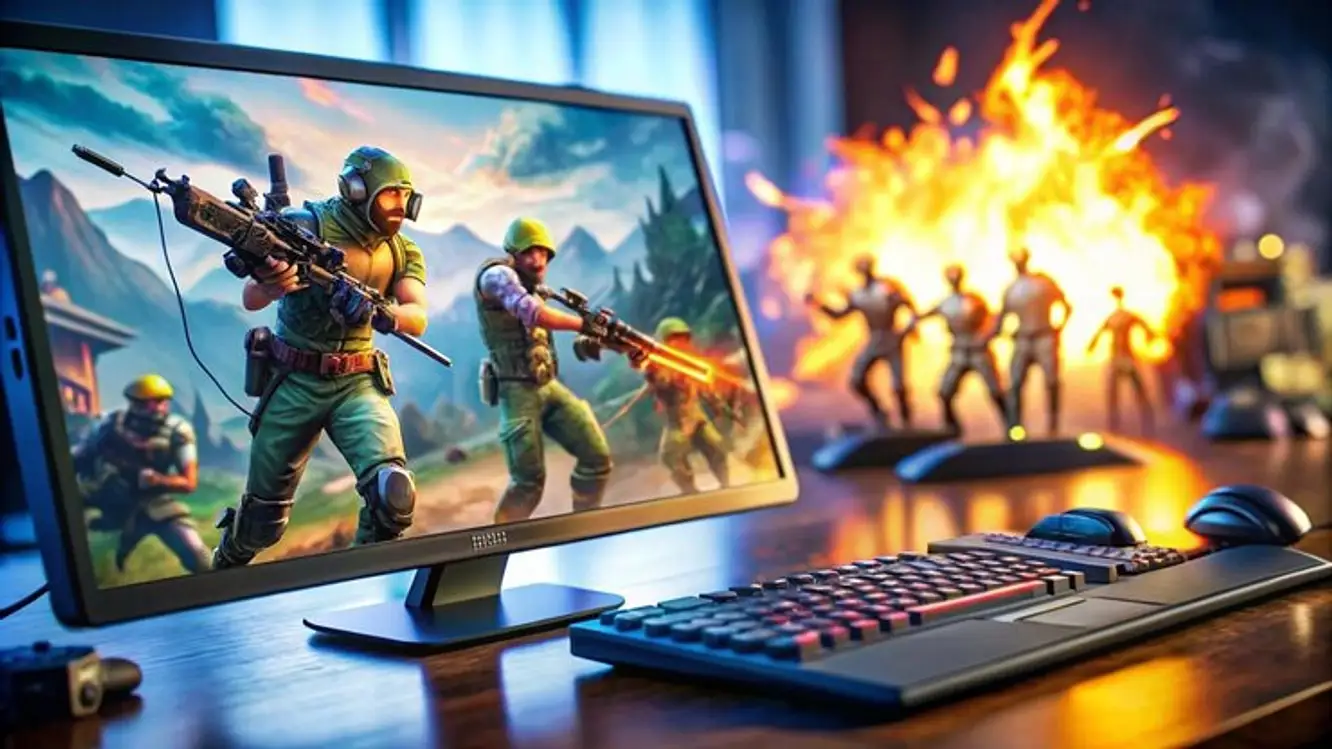
Fortnite is a game that rewards twitch reflexes, clean visuals, and smooth frame pacing. That means your PC settings are going to play a bigger role in your experience than you might expect. Tweaks to both your Windows settings and Fortnite’s graphics menu can minimize stutter and input delay while preventing matches from going hitch during crucial fights – all without requiring a brand new computer.
Get Display Settings Fine-tuned First
The behavior of your monitor affects Fortnite even before the game launches. Frame rate synchronization, display resolution, and low-latency graphics modes can all alter how smooth movement looks and reduce delay between your inputs and what you see on screen.
Ensure Windows uses your monitor’s correct refresh rate instead of a universal default like 60Hz. Prefer playing Fortnite in fullscreen mode over borderless windowed mode whenever possible too, as you’ll usually see better performance. These little display adjustments can have a big impact during door-breaking fights.
Why Power Plans Are Important
Did you know that Windows could be secretly throttling your PC’s potential performance? Computer hardware behaves more predictably when games like Fortnite know what to expect from your CPU and GPU. That consistency comes from your selected Power Plan prioritizing performance over factors like battery life or quiet operation.
Open Windows’ power settings and select a High Performance or Ultimate Performance power plan if available. While you’re at it, go ahead and quit background applications that consume CPU cycles, RAM, or disk read/writes. Eliminating unnecessary system stress leaves your PC with more resources to dedicate towards Fortnite and can even decrease random stutter.
Graphic Settings That Improve FPS
The graphics menu built into Fortnite can provide you the largest improvement from the least work. Many visual effects are demanding to compute and lowering them will immediately increase your FPS. This is especially true if you’re running Fortnite on older generation graphics cards or a laptop. The goal shouldn’t be ugly game graphics, instead focus on smooth motions and predictable input response.
● Lower your 3D resolution if you need more FPS without sacrificing your monitor’s resolution.
● Enable Performance Mode on systems that struggle to keep FPS up during busy matches.
● Decrease shadow quality/detail as shadows can often take a lot of FPS.
● Disable motion blur to make movement easier to track.
● Reduce view distance as little as possible before the game feels smoother.
● Lower texture quality if your video card is low on memory.
Test your changes by playing a real match or practicing in Creative mode. If combat feels smoother without significantly obstructing your ability to spot enemies, congratulations you’ve found settings more suited for competition!
What Updates Should You Apply First?
Although visual settings are important, some of the most egregious FPS offenders come from common software problems. Drivers, game overlays, and background applications can all negatively impact performance in weird ways. Performing a few basic updates is a great place to start if you encounter FPS issues.
● Update your graphics card driver through NVIDIA/AMD/Intel.
● Reboot after installing drivers.
● Turn off in-game overlays from Discord, NVIDIA GeForce Experience, Xbox Game Bar, etc.
● Close browser windows that are streaming videos or using large amounts of memory.
● Install Windows updates whenever the downloader opens outside of competitive matches.
● Ensure your antivirus isn’t running scans in the background.
These recommendations won’t fix every player’s FPS issues, but they can remove easily-fixed frame stuttering. After applying these basic performance tips, Fortnite should run with less technical interruptions and smoother frame pacing overall.
Adjust Advanced Options With Caution
Advanced Windows and NVIDIA Scalable settings can further improve your FPS after you’ve tried the obvious solutions. These options are only grouped together because improper configurations can harm your performance or visuals. Make one change at a time so you can know exactly which option affected your FPS.
● Enable Game Mode if it provides a noticeable benefit to your PC.
● Enable hardware-accelerated GPU scheduling if your GPU supports it properly.
● Set Fortnite’sGPU usage to High-performance NVIDIA processor
● Disable startup programs that you don’t need to launch at boot.
● Keep at least 10-15% of your total drive space free to allow Windows to work efficiently.
● Try advanced registry tweaks at your own risk. Research why you should change a setting before hand.
Rollback any option that worsens your performance or causes graphical glitches. Successful optimizations should be cautious changes that you can confidently keep because they improve your PC.
Improve FPS with Better Cooling
Component temperatures can throttle your FPS without you realizing it. Heat-related slowdown usually appears as sudden stuttering when fighting or building. Improving your computer’s cooling allows your hardware to maintain higher clock speeds for longer periods of time.
Cleaning your dust filters is a simple start. Dust builds up quickly in small form factor PCs and laptops compared to traditional cases. Listen to your fans too. If your computer sounds like a jet engine during a Fortnite match, it may be worthwhile to monitor your temperatures and ensure they’re within safe operating ranges. Lower temperatures won’t always help your FPS, but they can prevent thermal throttling.
Minimize Potential Software Interrupts
The best times to play Fortnite are when the game has the majority of your computer’s resources at its disposal. Background tasks can consume CPU time, force software updates to install at the worst times, or awaken from sleep to interrupt games just as you’re about to secure the Victory Royale.
Close down unnecessary launcher windows and pause any cloud downloads before launching the game. Streaming music or video should also be avoided if possible, but otherwise ok if your computer starts to struggle. Limiting background resource usage can have a larger impact on older computers.
Upgrade Hardware When It’s Needed
Settings can only improve your FPS so much if your computer can’t keep up. Adding new hardware might be a more cost effective solution than continuing to tweak your PC. Each component plays a different role in your FPS – especially during Fortnite’s most crowded battles.
Installing a new SSD won’t improve your FPS but you’ll notice faster loading screens and application responsiveness. Adding more RAM can help if you tend to have a lot of browser tabs and applications open at once. Graphics cards provide the largest benefit towards Fortnite FPS, but weigh the cost of potential upgrades before making a purchase.
How Players Upgrade Their Fortnite Experience
Players often overlook how their gaming experience extends beyond graphical fidelity and FPS. Your Fortnite experience can also be impacted by your account level and selected cosmetics. ACC.SHOP is a marketplace for gamers to buy and sell gaming accounts.
● Fortnite accounts lets you skip the grind and start playing with credits.
● Don’t risk buying OG Fortnite accounts that aren’t actually OG.
● Investigate the rarity of skins being sold before you buy.
● Try Valorant accounts to start with max ranks and badges.
● Roblox Accounts for sale are great when you care about limited items.
● You can even get Blox Fruits accounts for sale to gain advantages.
Whether you’re selling gaming accounts or looking to buy one, legitimacy should be your top priority when transaction accounts online. ACC.SHOP verifies all listings to ensure customers know what they’re getting when they look at gaming accounts for sale on our website.

Fortnite Creative 2.0: The Most Insane Maps You Need to Play
Fortnite Creative 2.0: The Most Insane Maps You Need to Play

Travis Scott & Kratos: Why These Vaulted Collab Accounts Are Skyrocketing
Travis Scott & Kratos: Why These Vaulted Collab Accounts Are Skyrocketing
Buying an OG Fortnite Account Beats Grinding the Item Shop
Buying an OG Fortnite Account Beats Grinding the Item Shop
Stay updated with our latest offers and promotions by subscribing to our newsletter. Create an account on ACC.SHOP and receive an exclusive discount code for your next purchase.